Since October 2010 I have used the WordPress Lexicon theme by StudioPress. In January 2012 I changed to the eleven40 theme.
The purpose of this page is to document the changes I have made to my current theme and to WordPress. This facilitates customizing new themes that I install. These changes have worked for my configuration but I cannot guarantee it will for yours.
I periodically update this page, dropping obsolete items, improving existing material, and making other changes (see the Updates section).
Contents
Add Drop Caps
Prevent Iframe Deletion
Add Comments to Pages
Change Footer
Change Comment Form
Archive Page Not Centered
Sortable Tables
Change Post Width
Google Custom Search
Updates
Add Drop Caps
Installing a new child theme removes this.
1. Add this code to your styles.css child theme file:
.dropCap

{

float: left;

font-size: 5em;

line-height: 0.9em;

padding: 0 5px 0 0;

/* font-family: Georgia, "Times New Roman", Times, serif; */

}
2. Put this in your post where you want the drop cap:
<span class="dropCap">T</span>
This did not work for the eleven40 theme until I commented out the font-family.
Prevent Iframe Deletion
When a section of iframe code is placed in the WordPress HTML editor, if the code is saved in the Visual editor, it will be deleted. I used to have a fix for this but it doesn’t work with the Genesis child themes. As this is a low priority, I just have to remember to use the HTML editor on the rare occasions I use iframes.
Add Comments to Pages
In the “Comments and Trackbacks” section of the Theme Settings under “Genesis,” check the “Enable Comments on pages?” box.
Change Footer
I want to change my footer so that I can display a privacy link and remove and/or add other links and text. Add this text to the genesis_footer hook in the Genesis Hooks plugin:
<div class="gototop">

<p><a href="#wrap" rel="nofollow">Return to top of page</a></p>

</div>

<div class="creds">

<p>© <a href="http://www.rickety.us/copyright">CC License</a> ♦ <a href="http://www.rickety.us/feedback">Contact Me</a> ♦ <a href="http://www.rickety.us/privacy-policy">Privacy</a> & <a href="http://www.rickety.us/comments-policy">Comments</a> policies ♦ <a href="http://validator.w3.org/check/referer">XHTML</a> ♦ <a href="http://jigsaw.w3.org/css-validator/check/referer">CSS</a> ♦ <a href="http://www.rickety.us/wp-admin">Admin</a> ♦ <?php wp_loginout(); ?></p></div>
Check the “Unhook genesis_do_footer() function from this hook?” and “Execute PHP on this hook?” boxes.
I used the Easy Privacy Policy plugin to create the privacy policy. Generate your policy page and save the html code. Delete the plugin and empty the trash (yes the plugin deletes your policy page). Paste your html in a new page.
The Contact Me link simply connects to my feedback page where a comment can be left and an email address is available.
Change Comment Form
Installing a new child theme removes this.
I changed the comment form to make it clear that I do not want product names used and that you can leave a comment without having to give an email address. The following code has a bug fix by Charles Clarkson included. Add this filter to the child theme’s functions.php:
// Customize the comment form

add_filter( 'genesis_comment_form_args', 'my_fields', 10, 6 );

function my_fields( $args, $user_identity, $id, $commenter, $req, $aria_req )

{

$args['fields']['author'] ='<p class="comment-form-author">' .

'<input id="author" name="author" type="text" value="' . esc_attr( $commenter['comment_author'] ) . '" size="30" tabindex="1"' . $aria_req . ' />' .

'<label for="author">' . __( 'Name (no product names)', 'genesis' ) . '</label> ' .

( $req ? '<span class="required">*</span>' : '' ) .

'</p><!-- #form-section-author .form-section -->';

$args['fields']['email'] ='<p class="comment-form-email">' .

'<input id="email" name="email" type="text" value="' . esc_attr(  $commenter['comment_author_email'] ) . '" size="30" tabindex="2"' . $aria_req . ' />' .

'<label for="email">' . __( 'Email (optional, will not be published)', 'genesis' ) . '</label> ' .

'</p><!-- #form-section-email .form-section -->';

return $args;

}
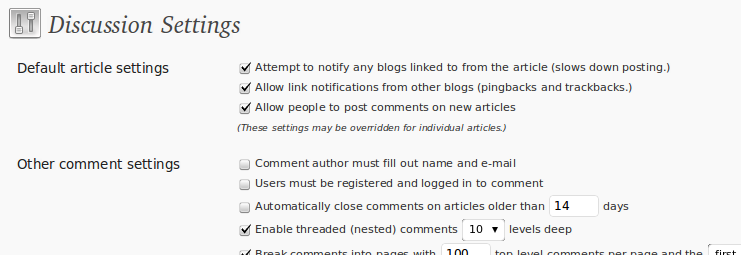
Don’t forget to de-select Comment author must fill out name and e-mail and Users must be registered and logged in to comment in the Discussion Settings.
Archive Page Not Centered
Change the .date selector to #content .date in style.css. This bug fix will likely be included in future releases.
Sortable Tables
My html tables are made sortable using the sorttable javascript library. Below are the basics but follow the library link for more details.
- Download the Javascript.
- Include the Javascript by putting a link to it in the HEAD of your page:
<script type="text/javascript" src="http://www.rickety.us/wp-content/themes/lexicon/sorttable.js"></script> - Mark your table as a sortable one by giving it a class of “sortable”:
<table class="sortable">
You may add the following styles to your stylesheet:
/* Sortable tables, thead */

table.sortable thead {

    background-color:#eee;

    color:#666666;

    font-weight: bold;

    cursor: default;

}
/* Sortable tables, tfoot */

table.sortable tfoot {

    background-color:khaki;

    color:#666666;

    font-weight: bold;

    cursor: default;

}
I leave out the font-weight and the color on the thead and leave out the color on the tfoot. For an example, see this table of U.S. LDS membership.
Change Post Width
Most of my post images have been resized to a width of 570 pixels. Another 20 pixels are needed for the borders. The current theme limits the post width to 580 pixels. To change the width to 590 pixels, find this code in styles.css:
#content {

	border-left: 1px solid #ddd;

	border-right: 1px solid #ddd;

	float: left;

	padding: 25px 39px 30px;

	width: 580px;

}
Change width: 580px; to width: 590px;
Google Custom Search
Note: I no longer use Google Custom Search. See Less Google for reasons to scale back your Google services.
Using my Google AdSense account I created a custom search engine. In the “What to search” box, do not use http://. Google strips this out but it seems to mess up searches initiated from the search results page.
In the “URL where search results will be displayed” make sure you use a http:// in front of your WordPress search results page url, in my case, I used “http://www.rickety.us” + “/search”.
From the code that Google generates, place the form code in a text widget. Add the results code to your WordPress search results page, for me, as mentioned, it is “http://www.rickety.us” + “/search”. You don’t need searchform.php with this Genesis theme.
Thank you to Steven for figuring out the http:// bug.
Updates
27 Jan 2011
Change Comment Form — Added a bug fix provided by Charles Clarkson.
Prevent Iframe Deletion — Removed the fix as it no longer works.
Change Post Background Image — Removed as it is no longer used.
18 Feb 2011
Archive Page Not Centered — Added a simple bug fix.
19 Feb 2011
Sortable Tables — Added.
27 Jan 2012
Hide Navbar Categories — Removed, no longer needed.
Change Post Width — Added.
